PC Buster Download

Guide

How to install, what you see on first run, and what each feature does and when to use it. Wherever a technical word comes up, it's explained right there.

InstallUpdate RepairShared Folder · PrinterWindows 11 FixesDevice RescueSlow StartupFile RecoveryAdware ScanWatch ModeNetwork CheckPrinter Rescue System CleanupScheduled CleanupRegistry CleanupStartup ProgramsTask SchedulerServices When the Internet Is SlowInternet Tune-upBlue ScreenDiskTemperature System InfoUninstall ProgramsForce Delete FilesFull Shutdown · ShortcutsShutdown TimerRemoving PC Buster

Install

Takes about a minute

  1. Click Download above to get PCBuster-1.8.0.exe. If Chrome says the file "isn't commonly downloaded", click Keep.
  2. Run the file. If a blue "Windows protected your PC" box appears, click More info → Run anyway. It appears because we haven't bought a code-signing certificate yet; it isn't a virus.
  3. A consent screen appears. It states that ads appear inside the window, what the program does, where it installs, and how to uninstall. Read it, tick the box, then click Agree and start.
  4. It installs into your user folder (AppData\Local\Programs\PC버스터 - the folder keeps the Korean product name) and adds icons to the Start menu and desktop. Nothing else needs to be installed.

Works on 64-bit Windows 10 and 11. Windows 7, 8 and 32-bit versions are not supported.
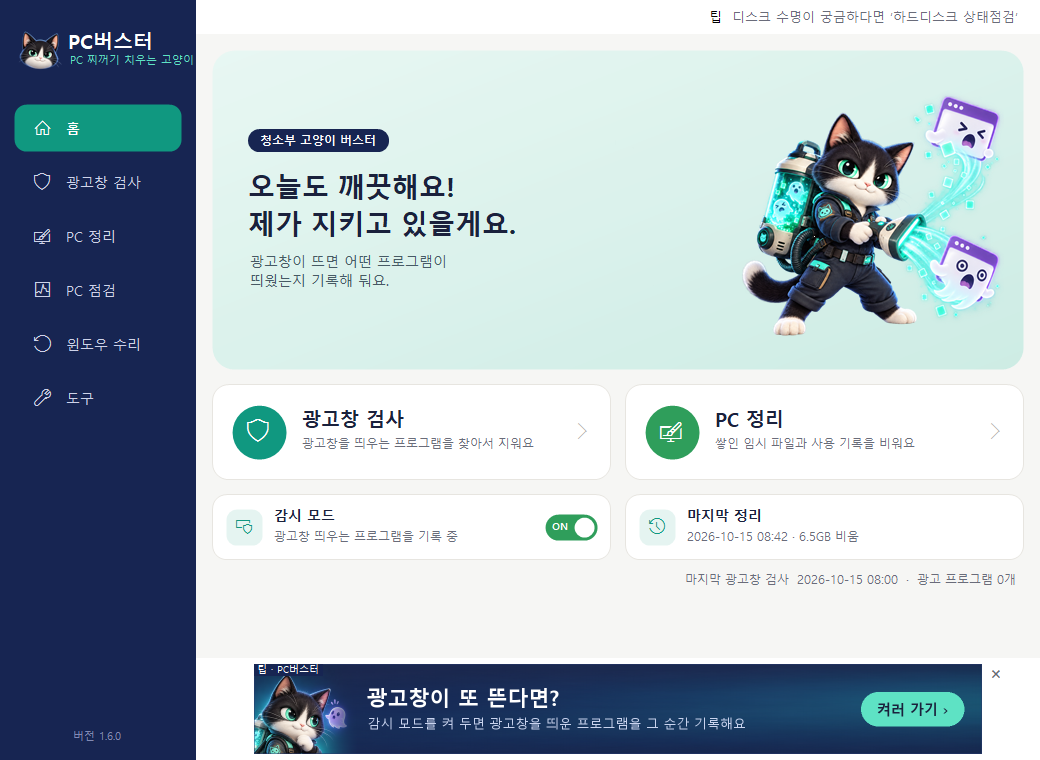
PC Buster home screen

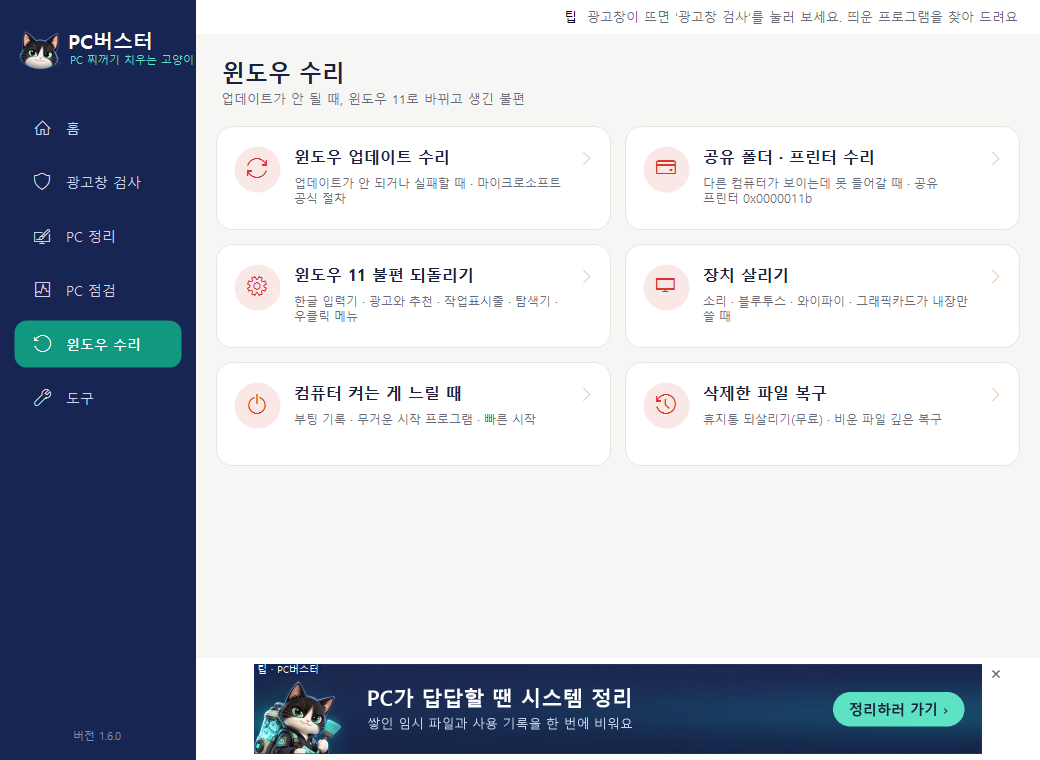
Windows Repair

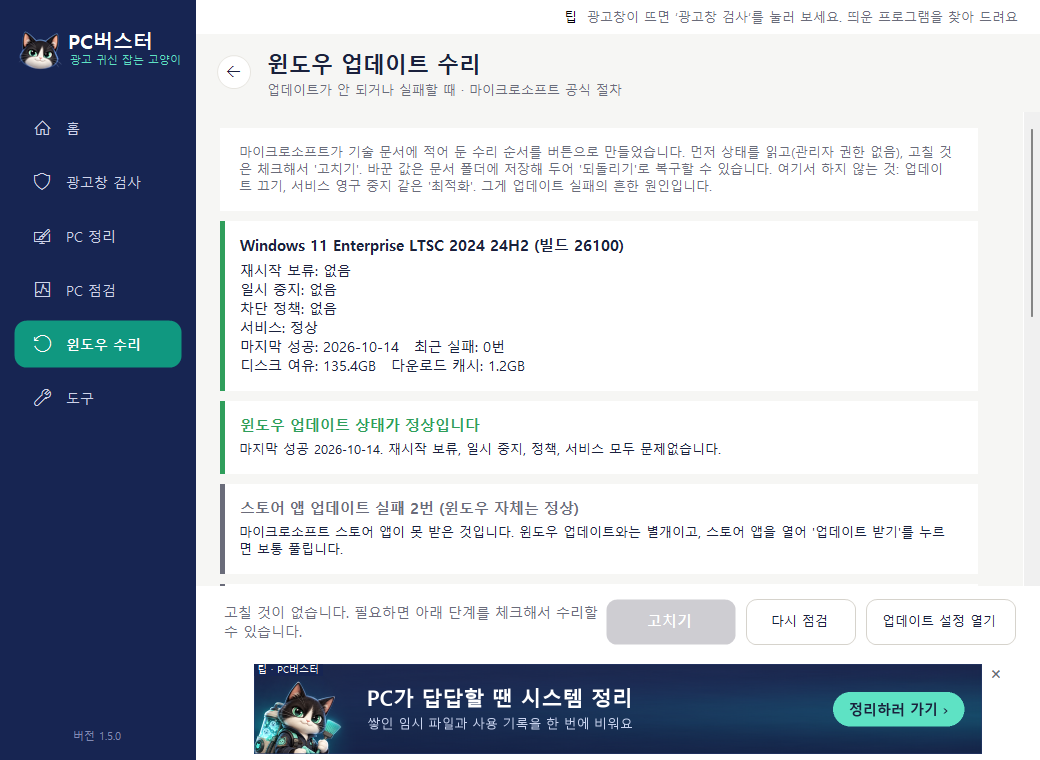
Windows Update Repair

When updates fail or "Check for updates" just spins forever

First it reads the state: is an update waiting for a restart, are updates paused, did an old "optimizer" program switch the service off, what was the error code of the last failure, is the disk running out of space. Then it runs the steps Microsoft lists in its technical documentation, as buttons.

  • Clear cache (30 seconds) → full reset (1–2 minutes) → system file repair (10–40 minutes) → network reset. The steps that match your error code are ticked in advance.
  • Every value it changes is saved to your Documents folder, and an Undo button appears on the same screen.
  • It never disables updates or permanently stops the service. Those are common causes of update failures in the first place.
Windows Update Repair screen

Shared Folder · Printer Repair

When another PC shows up under Network in File Explorer but you get "access denied"

It knocks on the door of every PC on the same router: is the sharing port closed, does guest access work, is there an account with the same name on that PC that's bouncing you. Recent Windows 11 builds block "sharing without a password" by default; unblocking that and remembering guest access opens most of them.

  • A PC that has closed its own door can't be fixed from this side. We create a "share opener file" for you to double-click on that PC.
  • If this PC is sharing a printer, it also fixes the 0x0000011b error that other PCs get when printing to it.
Windows Repair menu

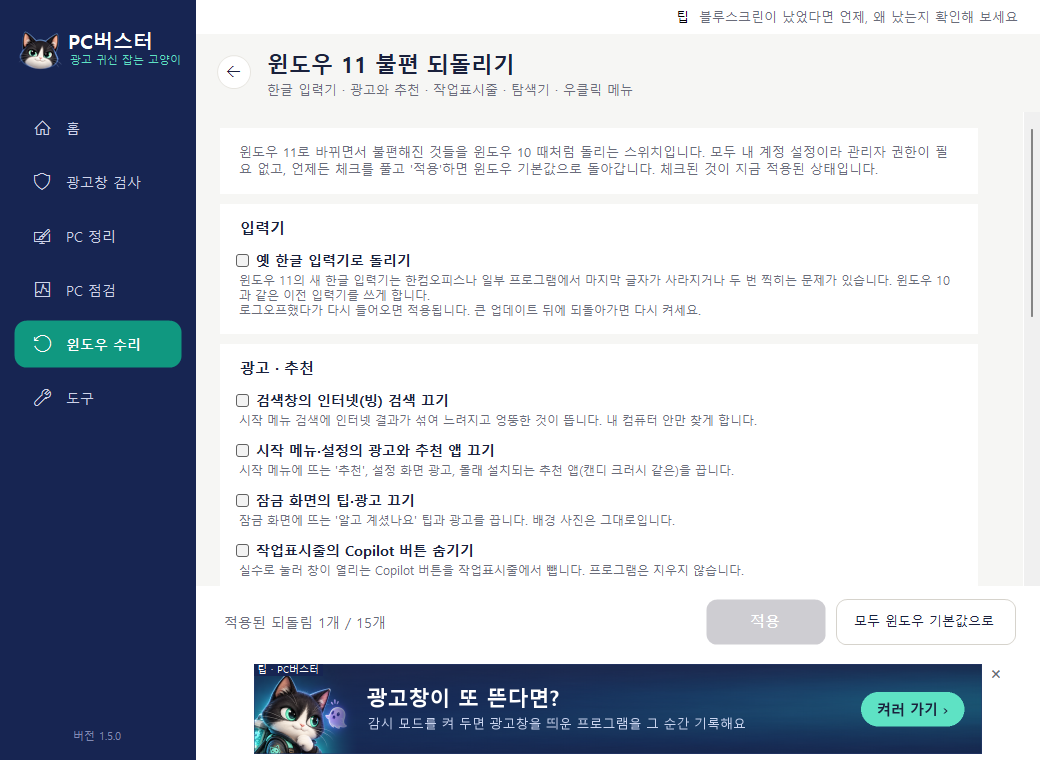
Windows 11 Annoyance Fixes

When something keeps bugging you since the move to Windows 11

Fifteen switches. The old Korean IME (fixes the disappearing last character), turning off Bing in the search box, turning off ads and suggestions in the Start menu, Settings and lock screen, hiding the Copilot button and widgets, taskbar on the left, never combining windows, shrinking the search box, opening File Explorer to "This PC", showing file extensions, hiding Gallery, the old right-click menu, and turning off Recall.

  • These are all per-account settings, so no administrator permission is needed. Untick and apply to go back to the Windows defaults.
Windows 11 Annoyance Fixes screen

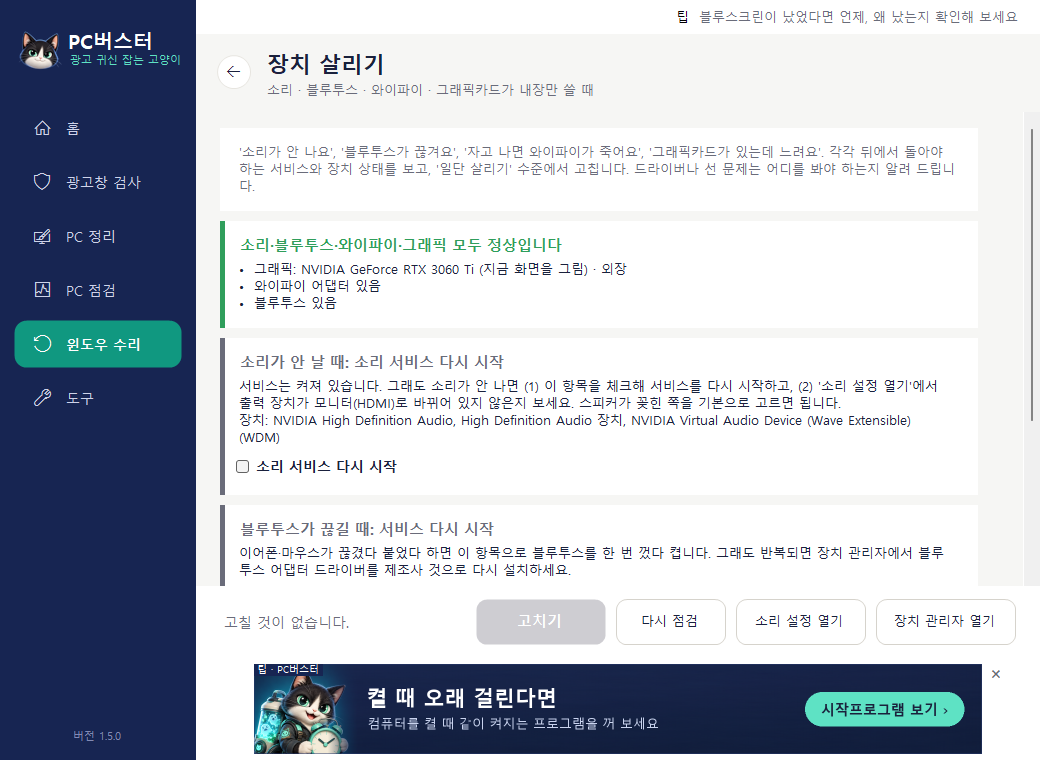
Device Rescue

When there's no sound, Bluetooth keeps dropping, Wi-Fi dies after sleep, or you have a graphics card but things are slow

For each one it checks the background service and the device state, then does a "first aid" pass: restarting the sound, Bluetooth and Wi-Fi services, stopping Wi-Fi from dropping after sleep, turning a disabled graphics card back on, and making laptops run games and editing programs on the dedicated GPU.

  • If a desktop has a graphics card but the screen is being drawn by the integrated graphics, the monitor cable is plugged into the motherboard port. We tell you where to move it.
  • Driver errors can't be fixed by software. We open Device Manager for you and point you to the manufacturer's driver.
Device Rescue screen

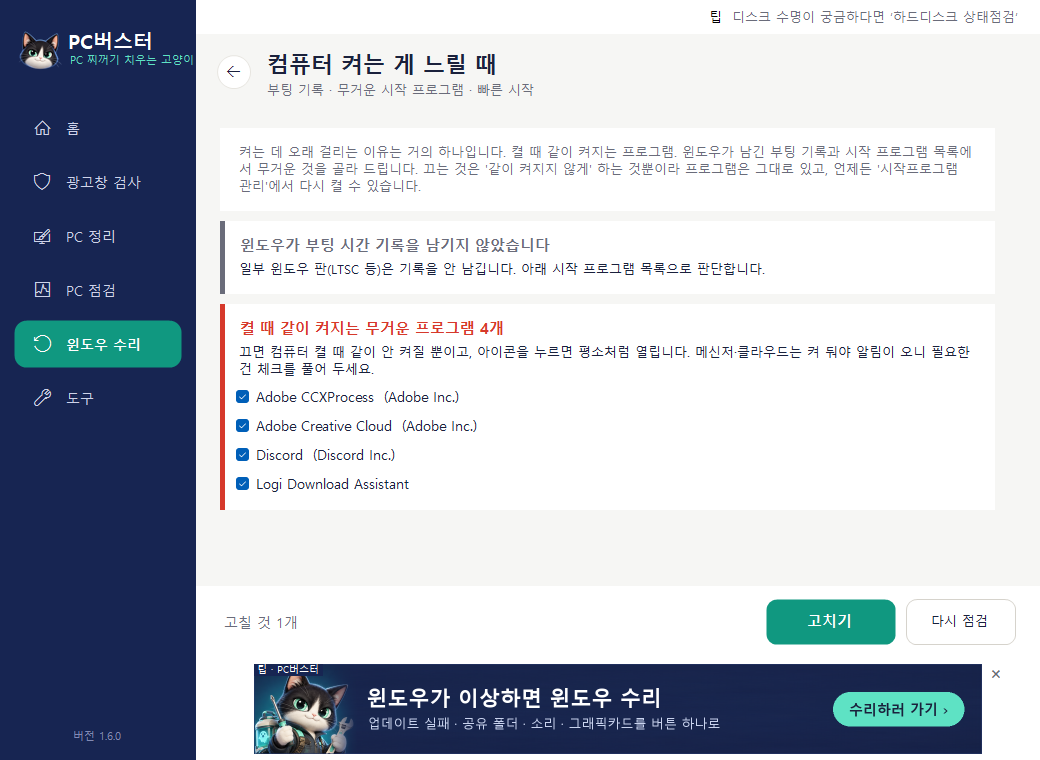
Slow Startup

When you press the power button and wait ages before you can use the PC

It reads the boot-time log Windows keeps and the programs Windows has flagged as "slowing down startup", and picks out the heavy startup programs (cloud sync, messengers, game launchers, manufacturer utilities). It also checks whether Fast Startup is off and whether Windows is installed on a hard disk.

  • All it turns off is "start together with the PC". Click the icon and the program opens as usual, and you can turn it back on under Startup Programs.
  • If it's a hard disk, we say so honestly: settings can only do so much. Replacing it with an SSD is the real answer.
Slow Startup screen

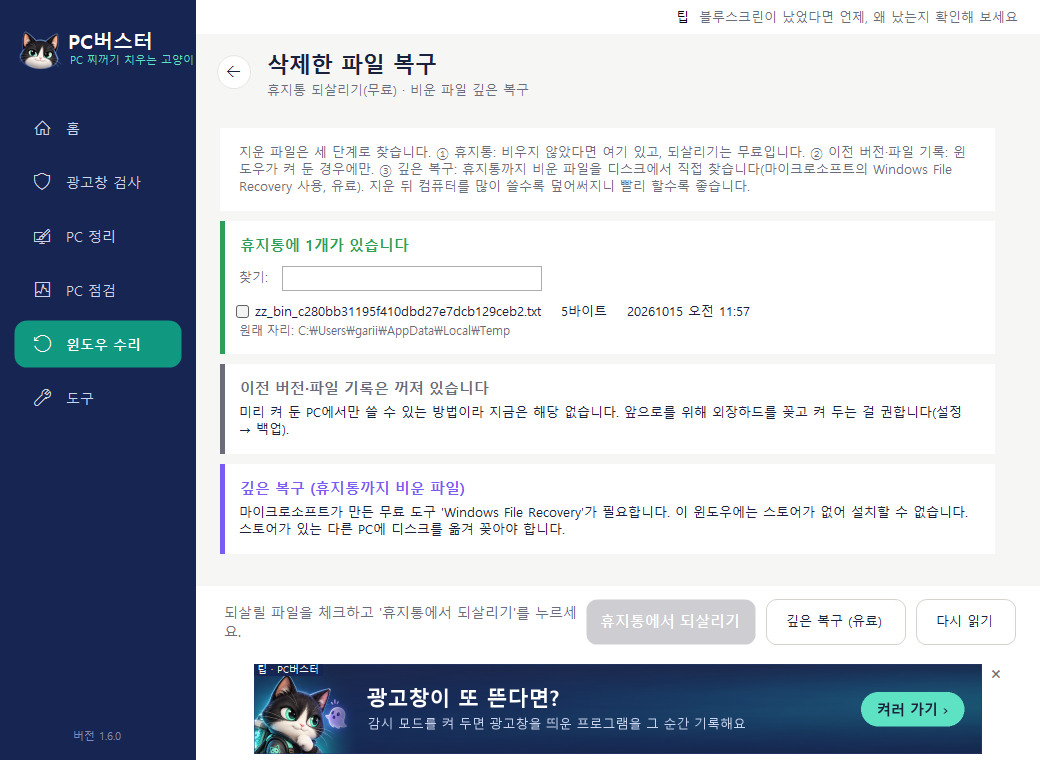
Deleted File Recovery

When you deleted something by mistake, even if you've emptied the Recycle Bin

Three stages. If the file is in the Recycle Bin, it finds it by name and restores it to its original place (free). If Windows' Previous Versions or File History was on, it guides you there. For files that were emptied from the Recycle Bin, it scans the disk directly with Microsoft's Windows File Recovery and pulls them out (paid).

  • Deep recovery must save to a different drive (USB stick or external disk), and if you've used the PC a lot since deleting, the data may already be overwritten and unrecoverable. The sooner, the better.
Deleted File Recovery screen

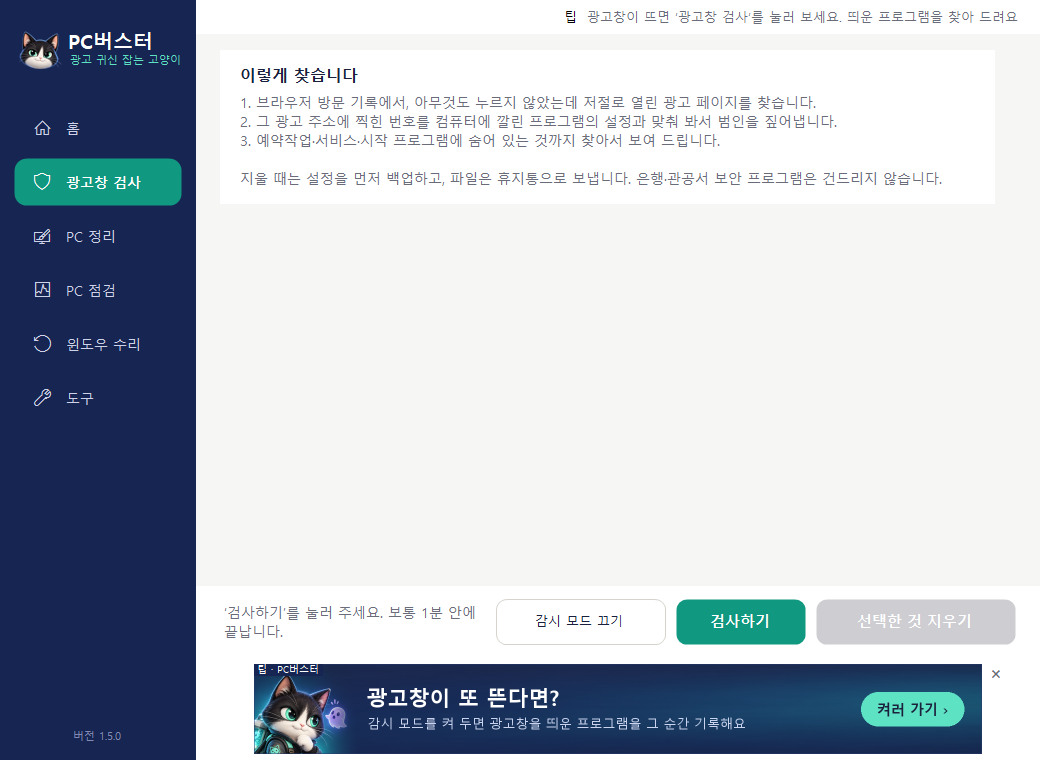
Ad Pop-ups · Security

Adware Scan

When ad pop-ups suddenly appear and you don't know which program is opening them

It finds pages in your browser history that were "opened by force by another program", then matches the ID stamped on those ad addresses against program settings on your PC to catch the culprit. A program is marked as confirmed only when three or more traces line up; anything borderline is shown separately as "suspected".

  • Bank and government security programs and programs from well-known makers are excluded from the start.
  • It shows you the list and asks before removing anything. Settings are backed up, and files go to the Recycle Bin.
  • Ad bookmarks, browser notification permissions, and hijacked home page and search settings are restored at the same time.
Adware Scan screen

Watch Mode

When the scan finds nothing but ad pop-ups keep coming

Leave the switch on the home screen turned on, and the next time an ad pop-up appears it records, at that very moment, "which program opened the browser". Scan again and that record is attached as evidence. While it's on, one small watch task runs at logon; turn it off and it disappears right away.

Watch Mode switch on the home screen

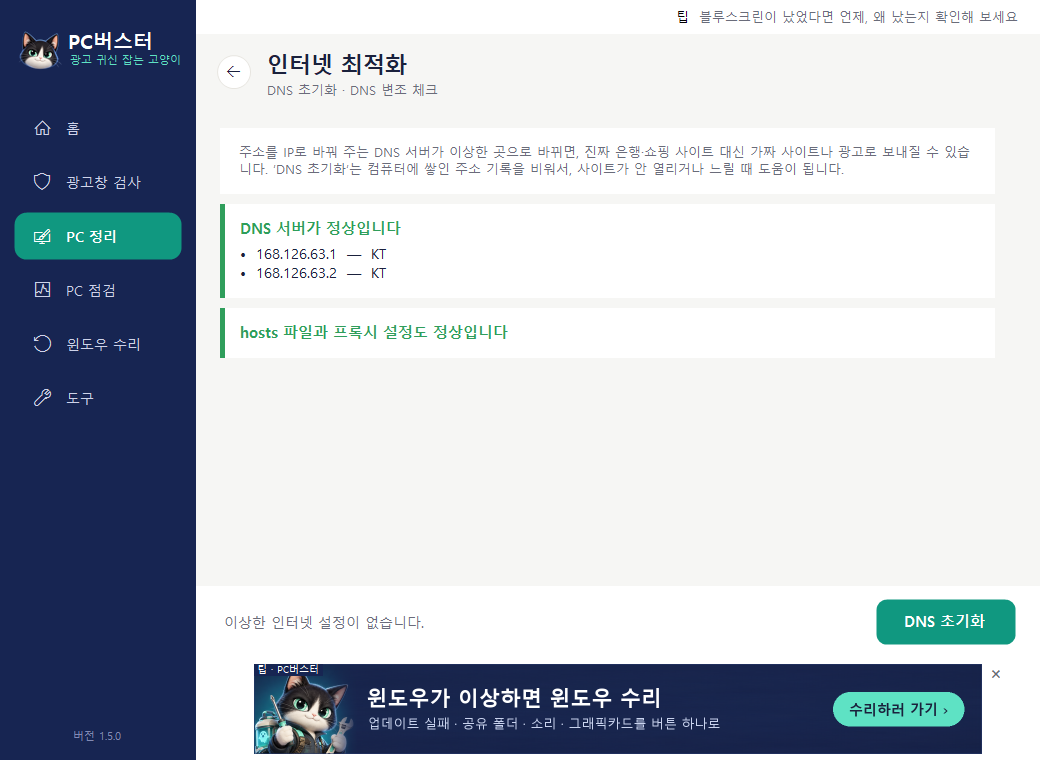
Internet Tune-up · DNS Tampering Check

When sites won't open, or your bank's site looks odd

It checks whether the DNS server that turns addresses into numbers is a known one, like your ISP's or Google's. If it's unknown, you could be redirected to ads or fake sites, so it warns you. It also looks at the hosts file and proxy settings. The "Flush DNS" button clears the stored address cache; it's the first button to try when sites won't open or feel slow.

Internet Tune-up screen

Check · Recover

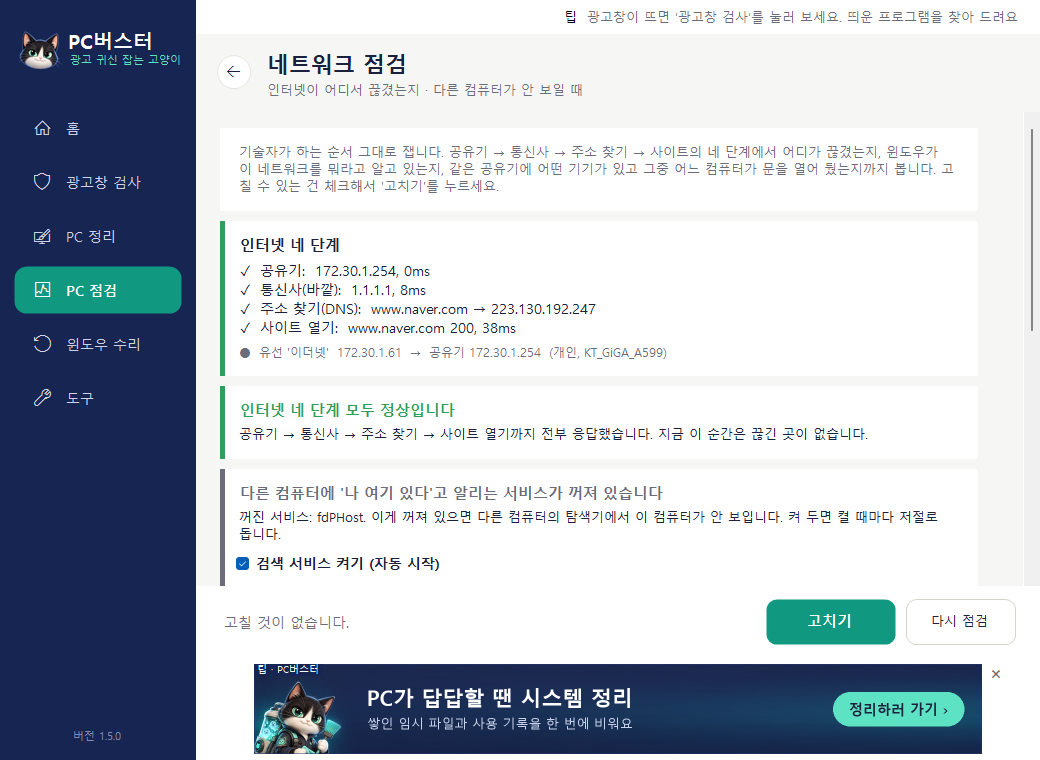
Network Check

When the internet drops, or other PCs don't appear under "Network" in File Explorer

It measures in the same order a technician would. Which of four stages is broken (router → ISP → address lookup → opening a site), whether two internet paths (say, Ethernet and phone tethering) are making it a coin toss, and whether Windows has mistaken your home network for a "public" one.

  • It finds the devices on the same router and sorts them into PCs, printers, and sharing open/closed.
  • Tick what can be fixed and press "Fix" once. Just click "Yes" on the administrator prompt.
  • If another PC has closed its door, it creates a "share opener file" on your desktop to double-click on that PC.
Network Check screen

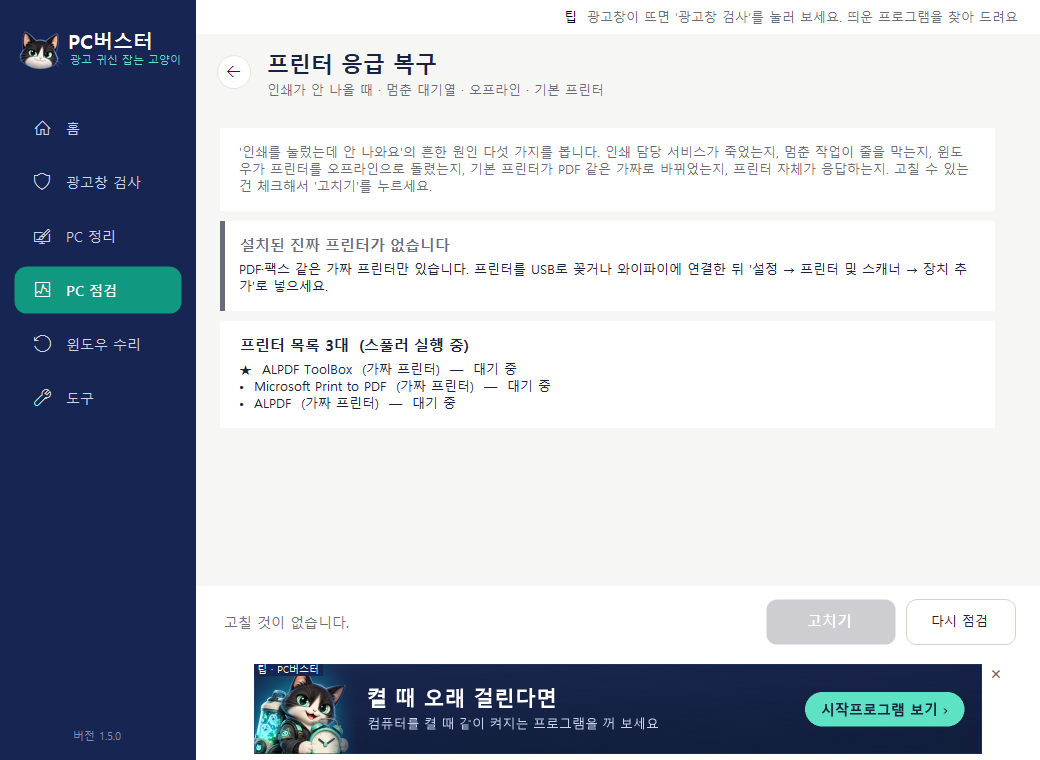
Printer Rescue

When you hit Print and nothing comes out

It checks whether the print service (the spooler) has died, whether a stuck job is blocking the queue, whether Windows has ticked "Use Printer Offline", whether the default printer has been switched to a fake one like PDF, and whether the printer itself responds on the network. Tick the boxes, press Fix, done. Documents in a cleared queue need to be printed again.

Printer Rescue screen

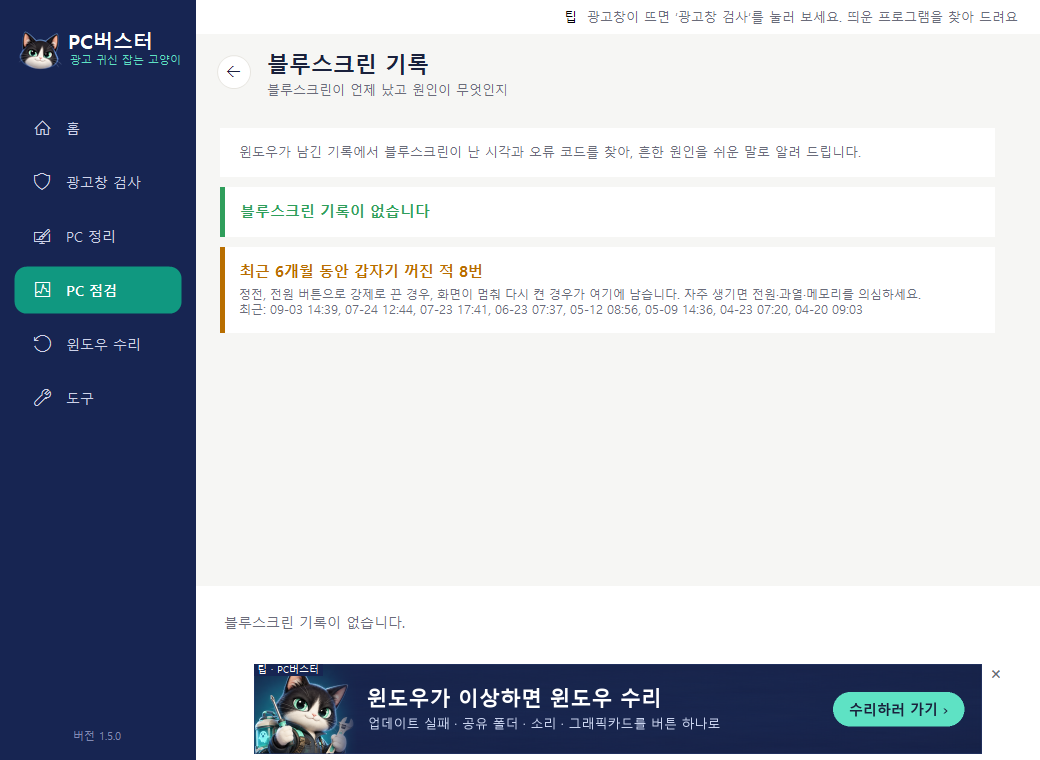
Blue Screen Log

When a blue screen flashed and the PC restarted, and you want to know why

It finds the time and error code of each blue screen in the logs Windows keeps and explains the common causes (driver, memory, disk) in plain words. Sudden shutdowns from power cuts or forced power-offs are counted too.

Blue Screen Log screen

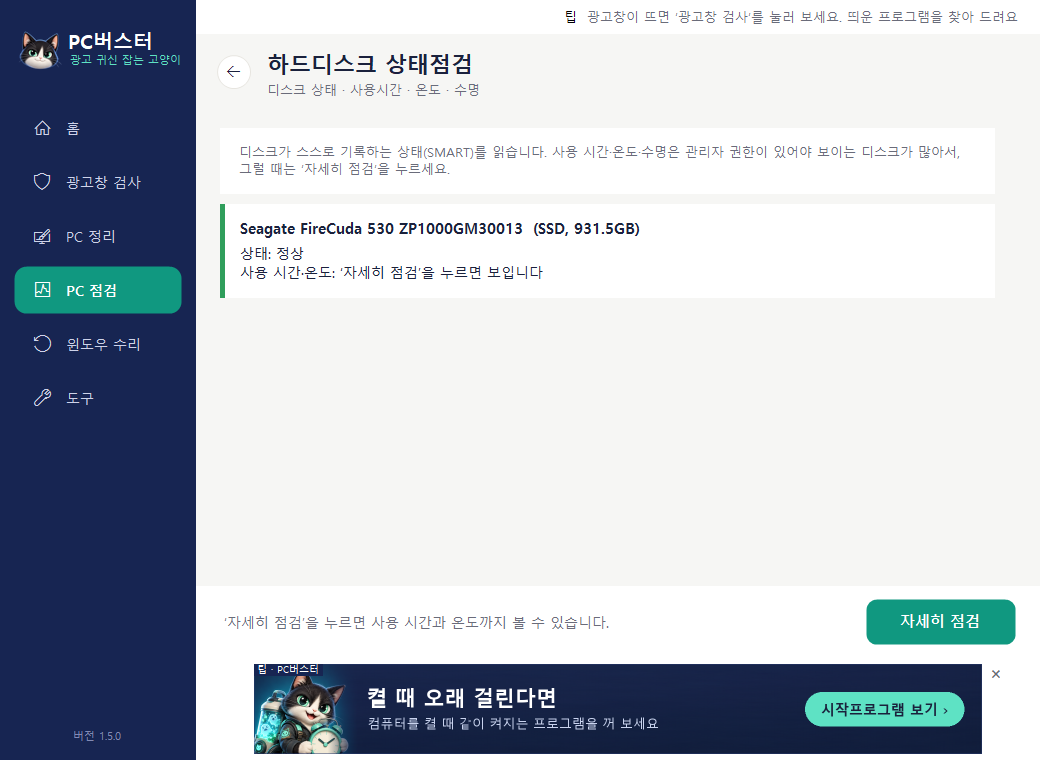
Disk Health

When the PC is getting old or makes strange noises

It reads the health data the disk keeps on itself (SMART) and shows it as Normal, Caution or Danger. Hours used, power-on count, temperature and SSD wear are shown too. If you see "Caution", back up your important files first.

Disk Health screen

CPU · GPU Temperature

When the fan is loud or the PC feels hot

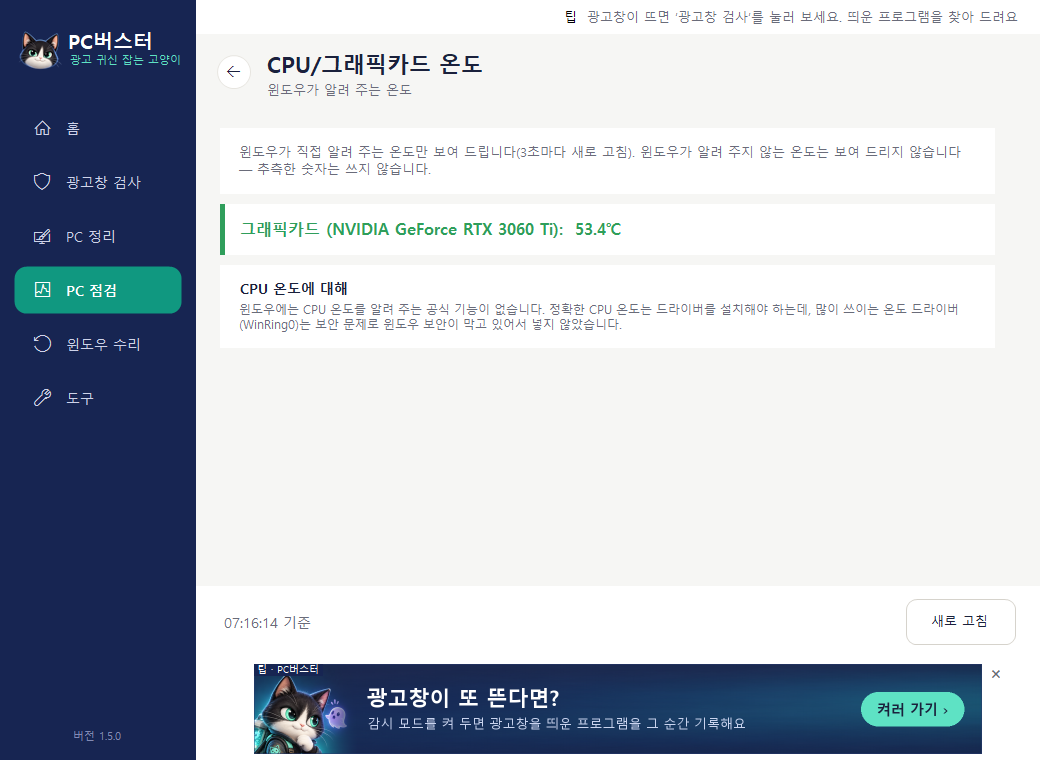
It only shows temperatures that Windows itself reports. No guessed numbers. So on a PC whose graphics driver doesn't report a temperature, you'll see "Not reported". Accurate CPU temperature needs a separate driver, which we left out for security reasons.

Temperature screen

System Info · Usage Time

When someone asks for your PC's specs, or you wonder who used it how much

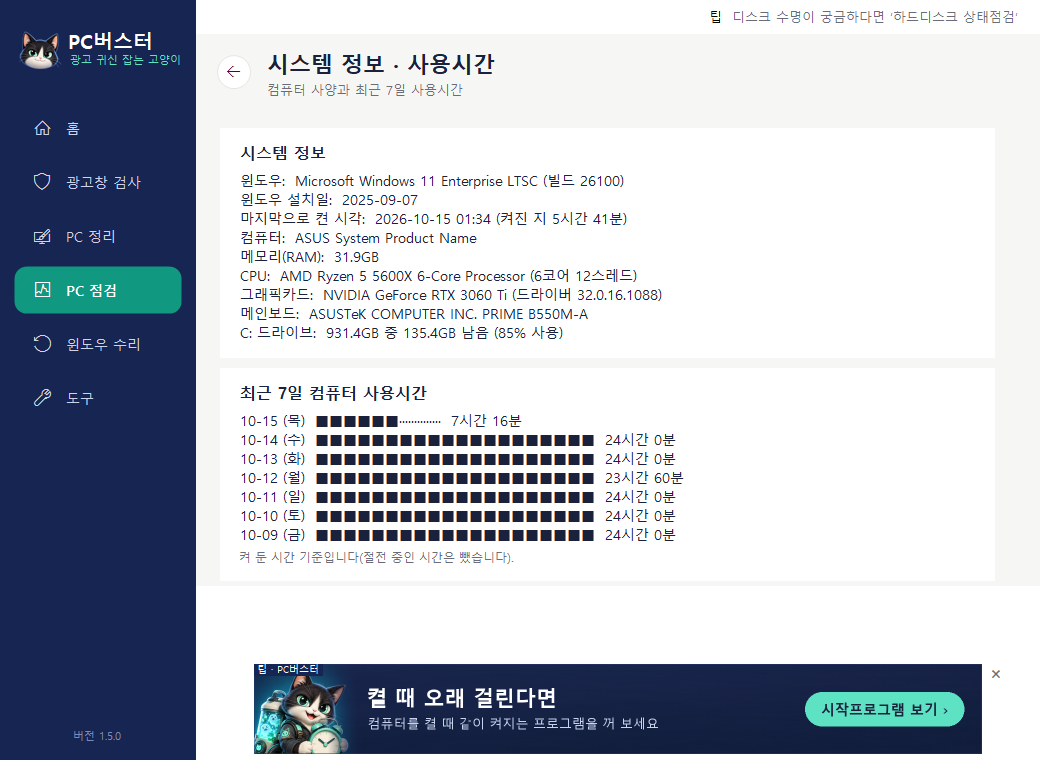
Shows specs like the Windows version, CPU, memory and install date, plus how many hours the PC was on each day over the last 7 days.

System Info screen

Cleanup

System Cleanup

When the disk is full or the PC feels sluggish

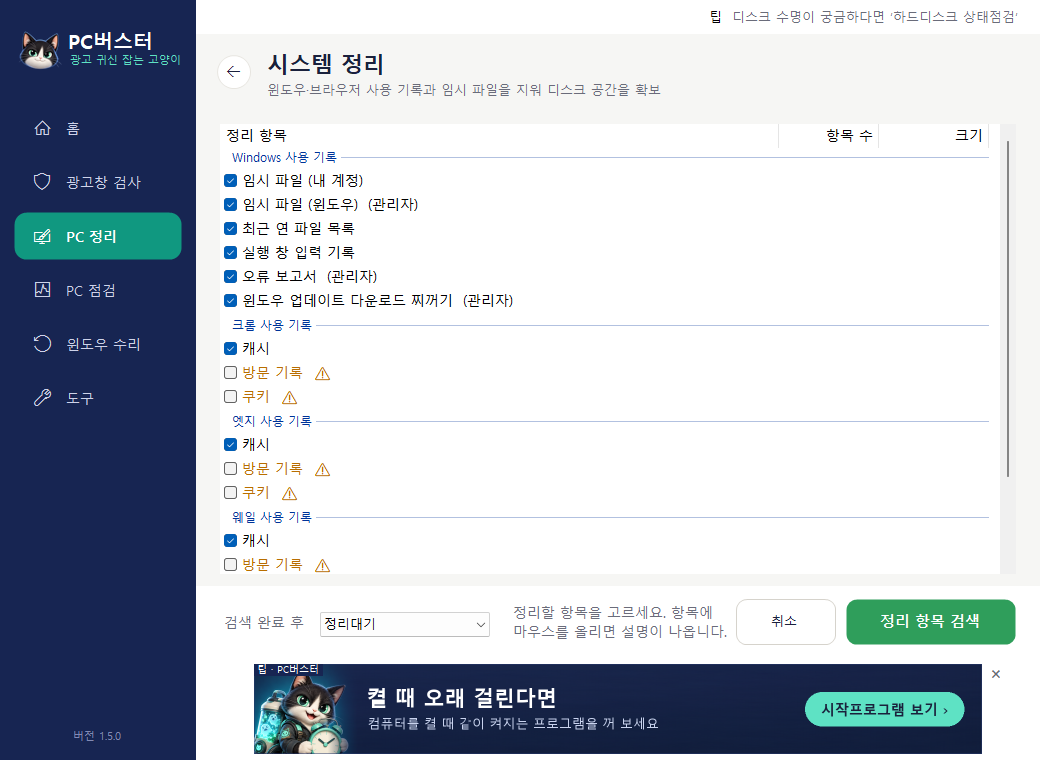
It finds Windows temp files, error reports, update leftovers and browser caches, shows how much there is, and removes them. The order is scan → table → clean → "space freed".

  • Browsing history and cookies are off by default. Removing them means logging in to sites again, so tick them only when you want to.
  • Files created in the last 2–3 days are left alone.
System Cleanup screen

Scheduled Cleanup

When you can't be bothered to click Clean every time (pass)

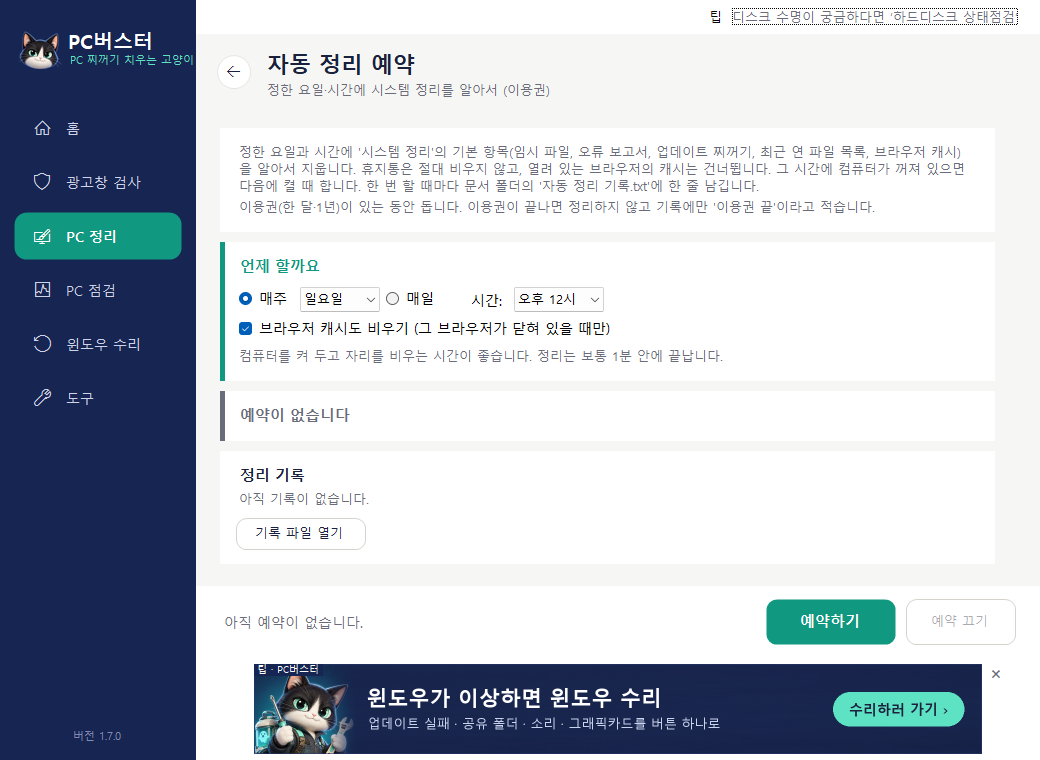
On the day and time you set, it clears the default System Cleanup items (temp files, error reports, update leftovers, recent-files list, browser caches) on its own. It never empties the Recycle Bin, and it skips the cache of any browser that's open. If the PC was off at that time, it runs the next time you turn it on. Each run adds one line to "자동 정리 기록.txt" (the scheduled cleanup log) in your Documents folder.

  • It's registered in Windows Task Scheduler as a task named "PC버스터 자동 정리" (PC Buster Scheduled Cleanup). Click "Turn off schedule" and that task is removed.
  • It runs while you have a pass (1 month or 1 year). When the pass ends it stops cleaning and only writes "pass ended" in the log.
  • Doing it yourself (free): Windows Settings → System → Storage → turn on Storage Sense, and Windows will clear temp files periodically. Browser caches are cleared from each browser's settings → Clear browsing data.
Scheduled Cleanup screen

Registry Cleanup

After uninstalling a lot of programs, when you want to clear the leftovers

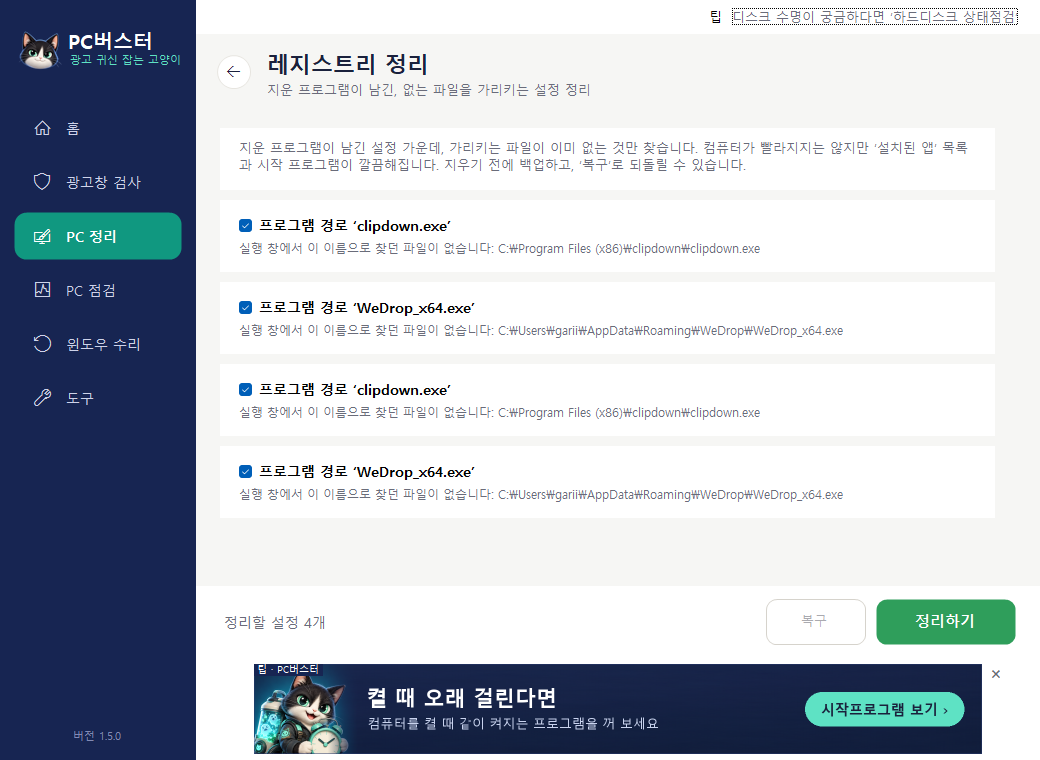
Among the settings uninstalled programs leave behind, it finds and removes only those that "point to a file that no longer exists". It won't scare you with "thousands of problems found" like other cleaners do. Everything removed is backed up, and the "Restore" button on the card brings it back any time.

Registry Cleanup screen

Startup Programs

When the PC takes a long time to start

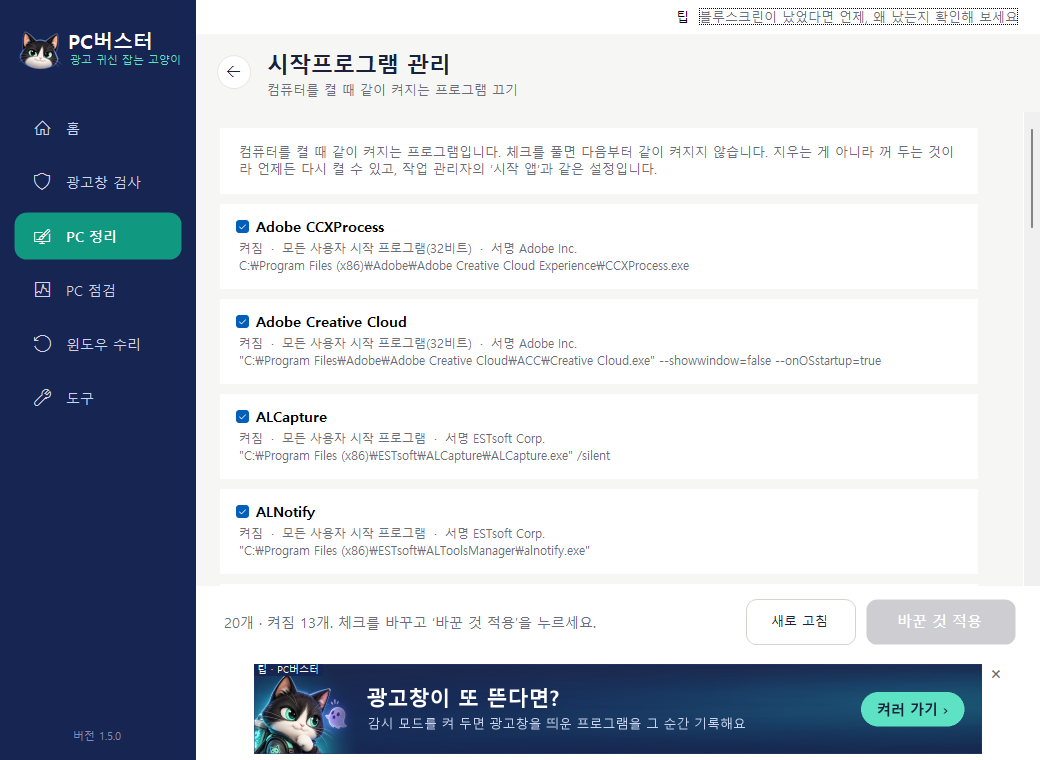
The list of programs that start together with your PC. Switching one off is handled exactly like disabling it in Task Manager, and you can switch it back on. It doesn't uninstall the program; it just stops it from "starting together".

Startup Programs screen

Task Scheduler

When something runs on its own while you're doing nothing

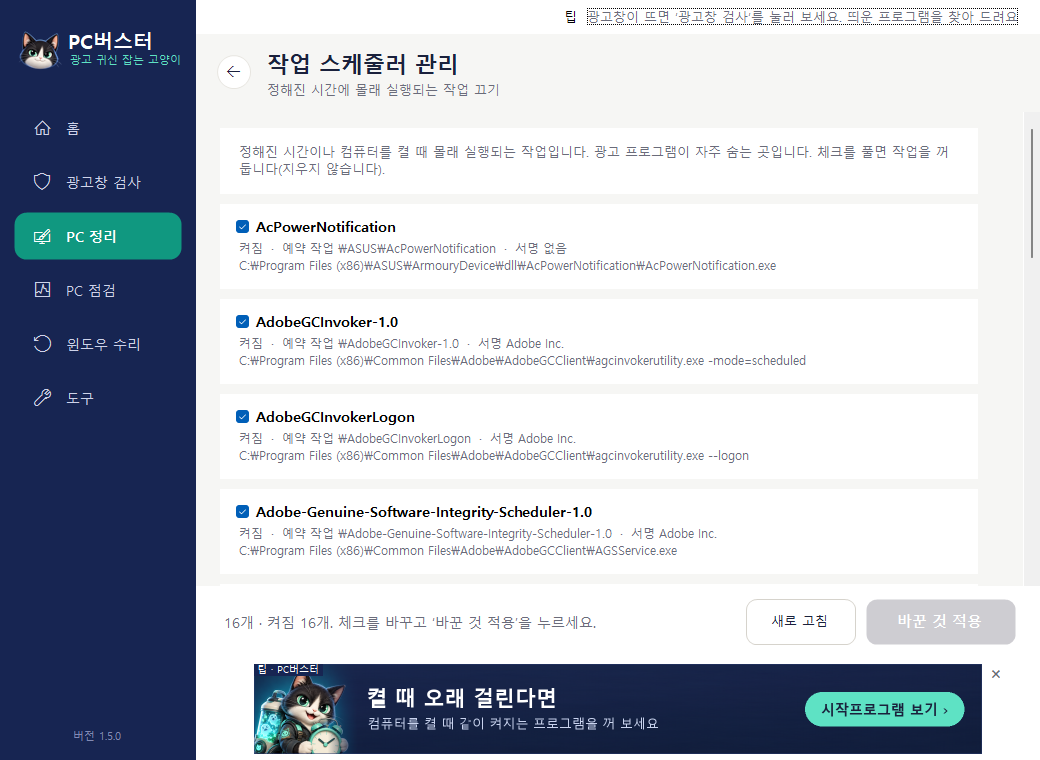
The list of tasks registered to run quietly at set times or conditions. Adware often uses this spot to bring itself back, so it shows which program registered each task and whether it's signed. Windows' own tasks are marked separately.

Task Scheduler screen

Services

When the PC is still slow after turning off all startup programs

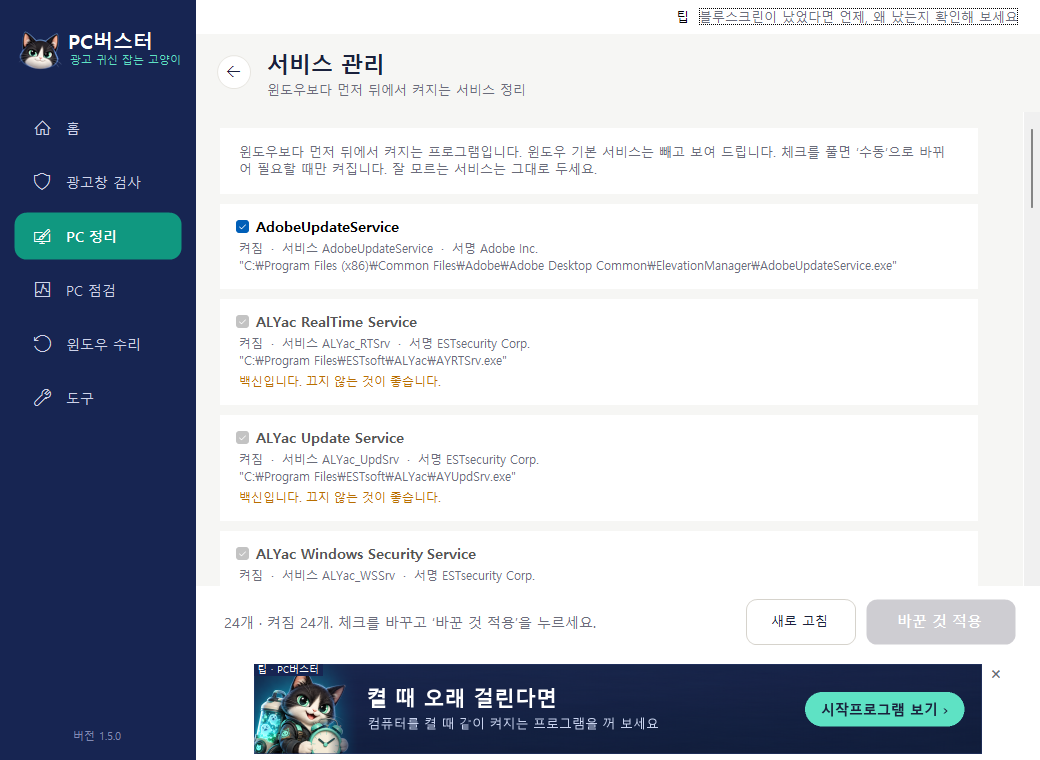
The list of services that start in the background before Windows itself. Windows' own services are separated so you don't touch them, and the maker and signature are shown alongside. For services you don't recognise, changing "Automatic" to "Manual" is about as far as it's safe to go.

Services screen

When the Internet Is Slow

When videos stutter and sites are slow

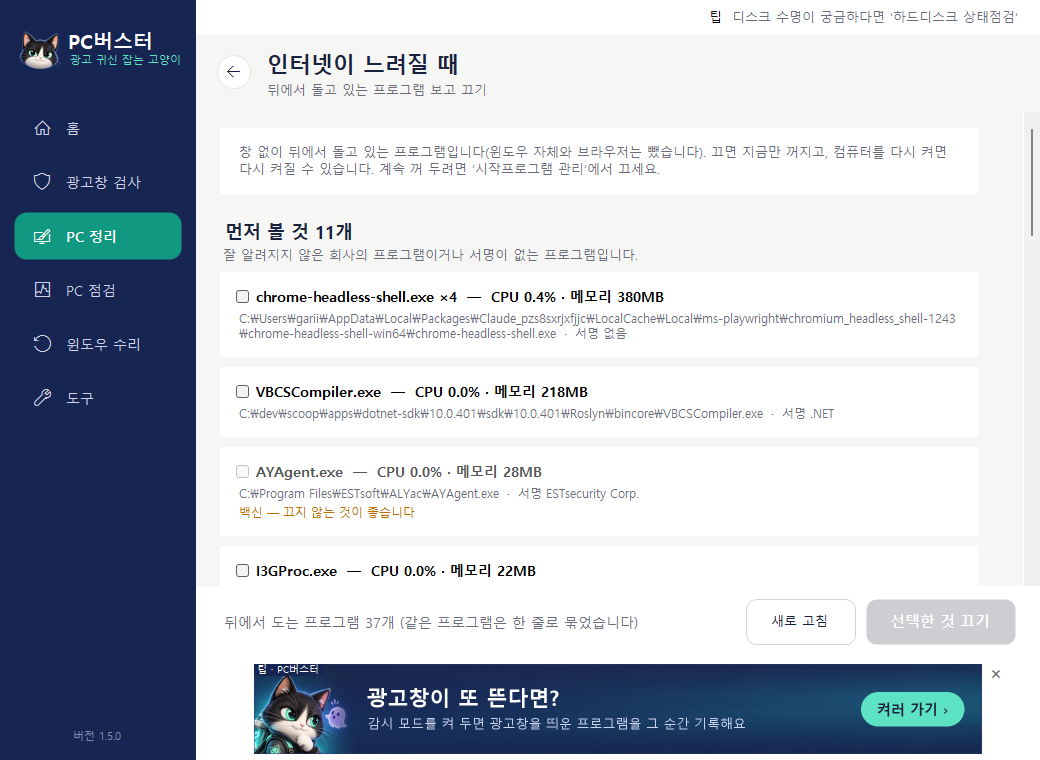
Shows the programs running in the background right now, grouped one line per program. You can pick the ones using a lot of memory or that you don't recognise and stop them. Stopping doesn't uninstall anything; it runs again the next time you open it.

When the Internet Is Slow screen

Tools

Uninstall Programs

When a program won't uninstall from Settings

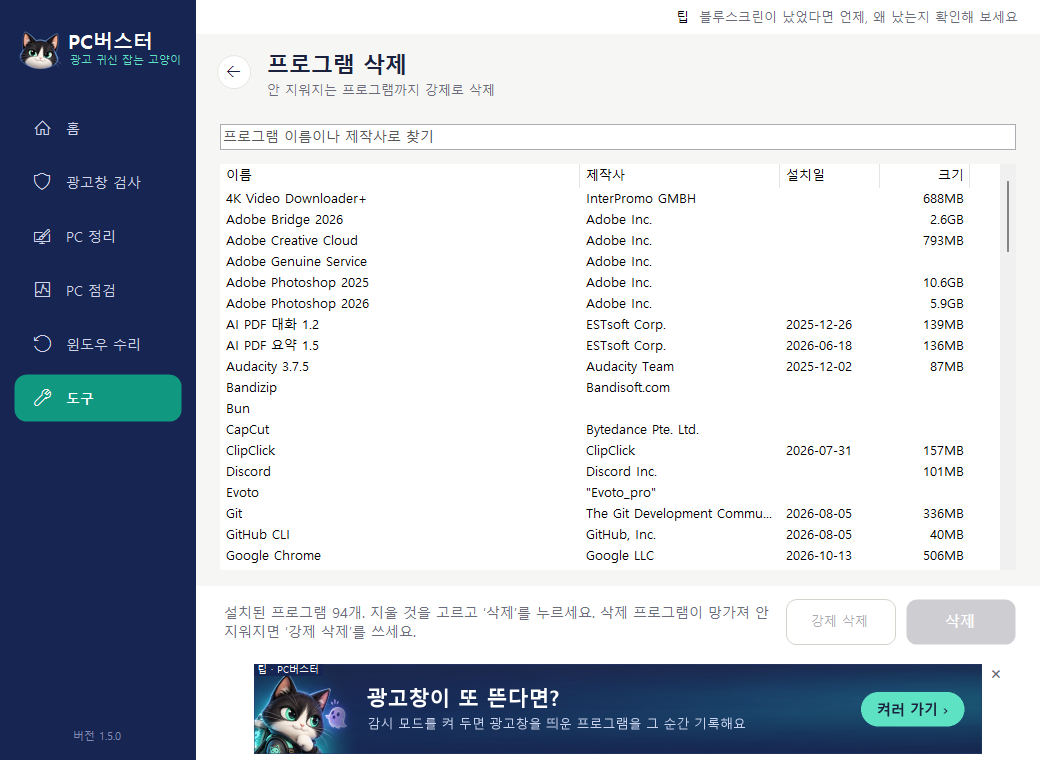
Shows the maker, install date and size of each installed program, and removes it. If normal uninstall fails, "Force uninstall" clears out running processes, services, scheduled tasks, startup entries, shortcuts and folders in order. Suspicious programs are flagged.

Uninstall Programs screen

Force Delete Files

When you see "The file is in use by another program and cannot be deleted"

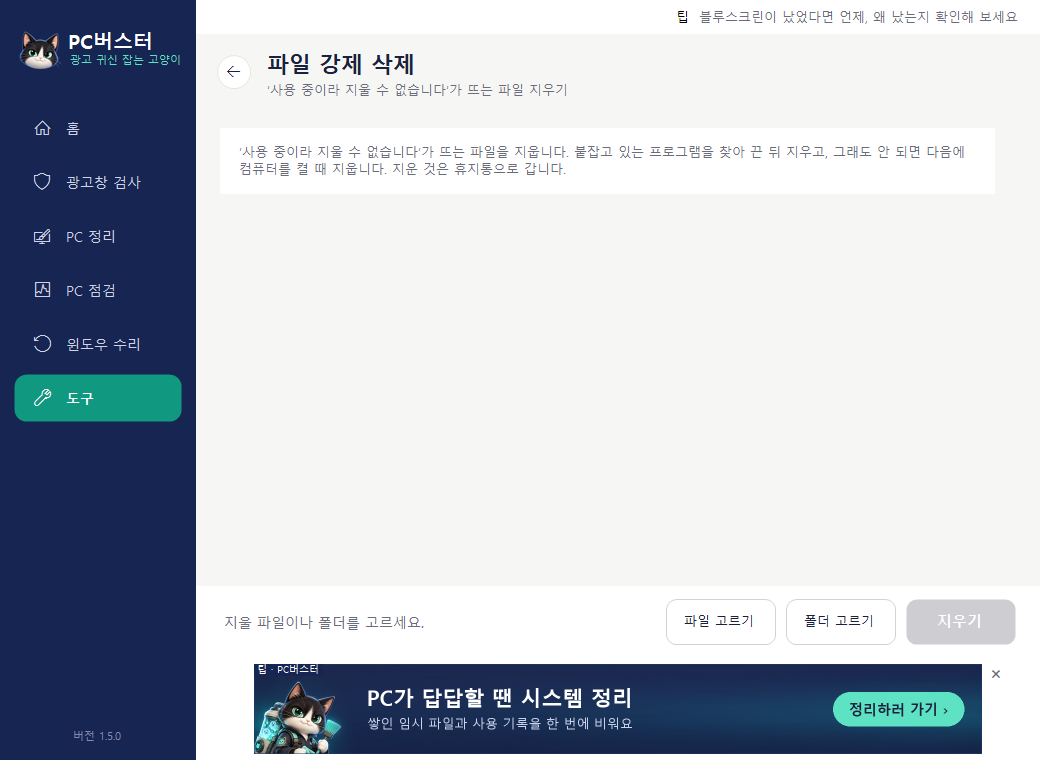
It finds and shows which program is holding the file, closes that program, then deletes the file. If that still fails, it schedules the deletion for the next time the PC starts.

Force Delete Files screen

Full Shutdown · Hidden Shortcuts

When a restart didn't help, or the screen went black and froze

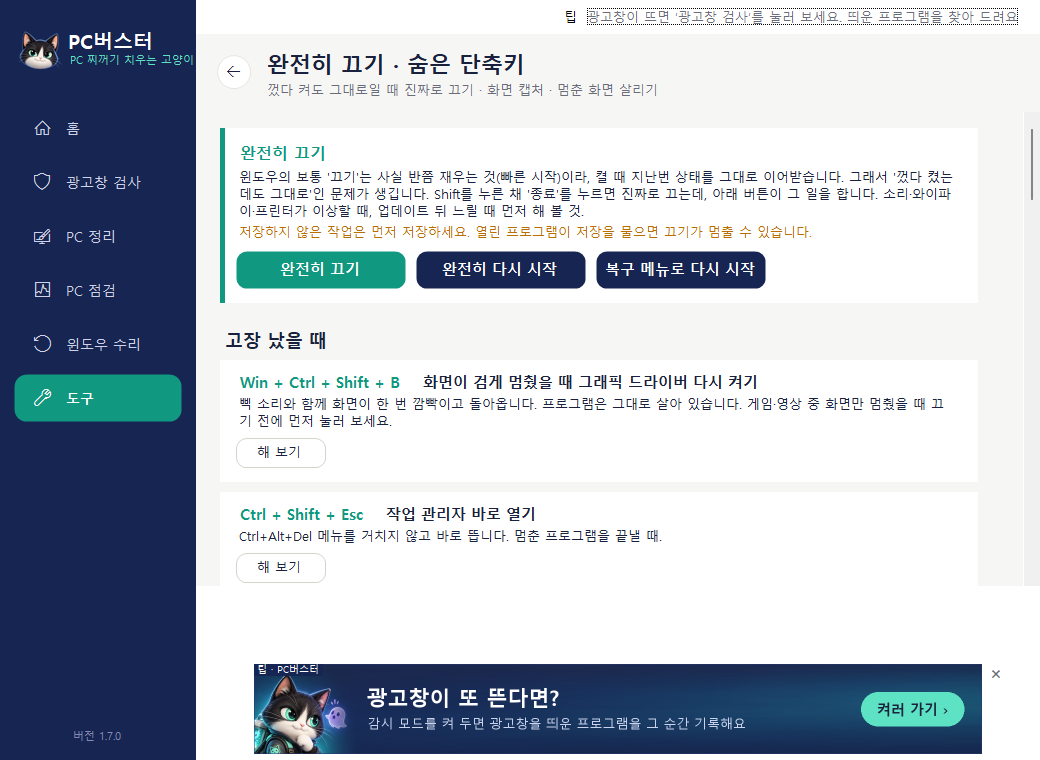
The normal "Shut down" in Windows is really a half-sleep (Fast Startup), so the next boot carries over the previous state. That's why sound, Wi-Fi or the printer can stay broken even after you turn the PC off and on. Holding Shift while clicking "Shut down" turns it off for real, and the Full Shutdown button on this screen does exactly that. Restart to recovery menu is the same as Shift + Restart and takes you to Safe Mode and System Restore.

  • The shortcuts are listed starting with the ones you need when something breaks. Win+Ctrl+Shift+B restarts the graphics driver when only the screen has frozen black, and Win+Shift+S captures part of the screen to the clipboard.
  • Click "Try it" and it presses that key combination for you. See what appears, then remember it.
Full Shutdown and Hidden Shortcuts screen

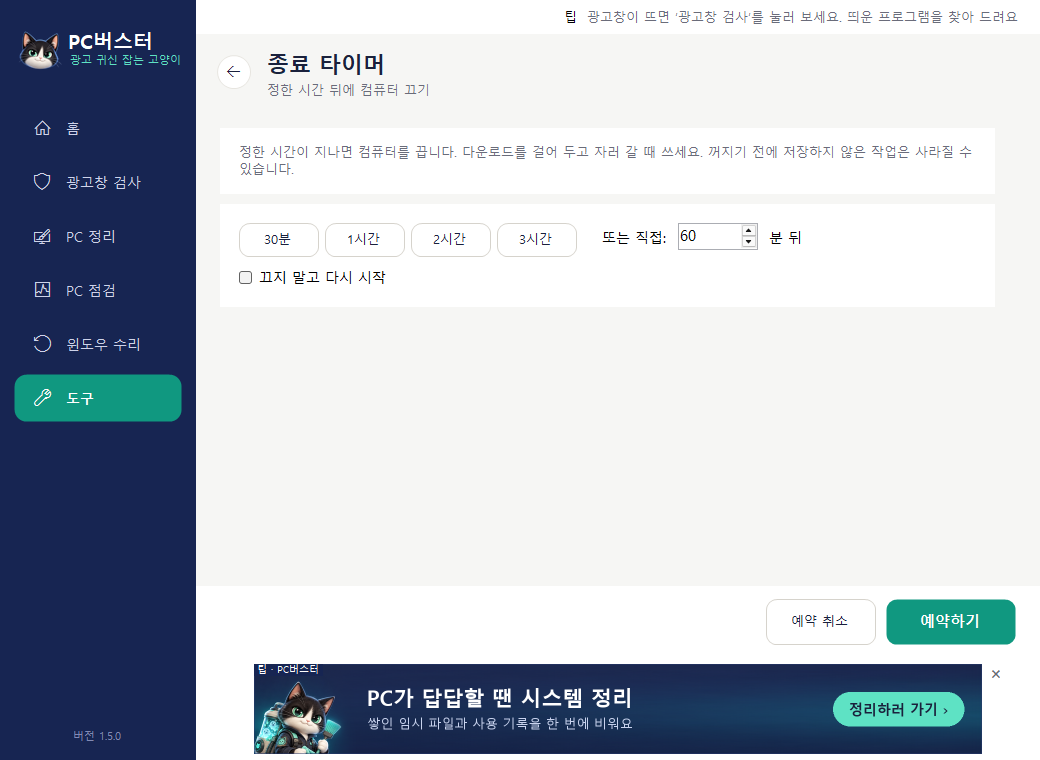
Shutdown Timer

When you leave a download or a job running and step away

Shuts the PC down after the time you set. You can cancel it too.

Shutdown Timer screen

Removing PC Buster

Open Windows Settings → Apps → Installed apps, find PC Buster and click Uninstall. Everything the program added, including the install folder, shortcuts and the Watch Mode task, is removed.

Backups created by Adware Scan or Registry Cleanup are left in your Documents folder. If you don't need them, just delete that folder.